> ## Documentation Index
> Fetch the complete documentation index at: https://docs.percify.io/llms.txt
> Use this file to discover all available pages before exploring further.
# Generate many images or videos at once in Batch Mode
> Percify Batch Mode configures one model, quality and prompt, then runs it many times in parallel. Results stream into a grid as each one finishes.
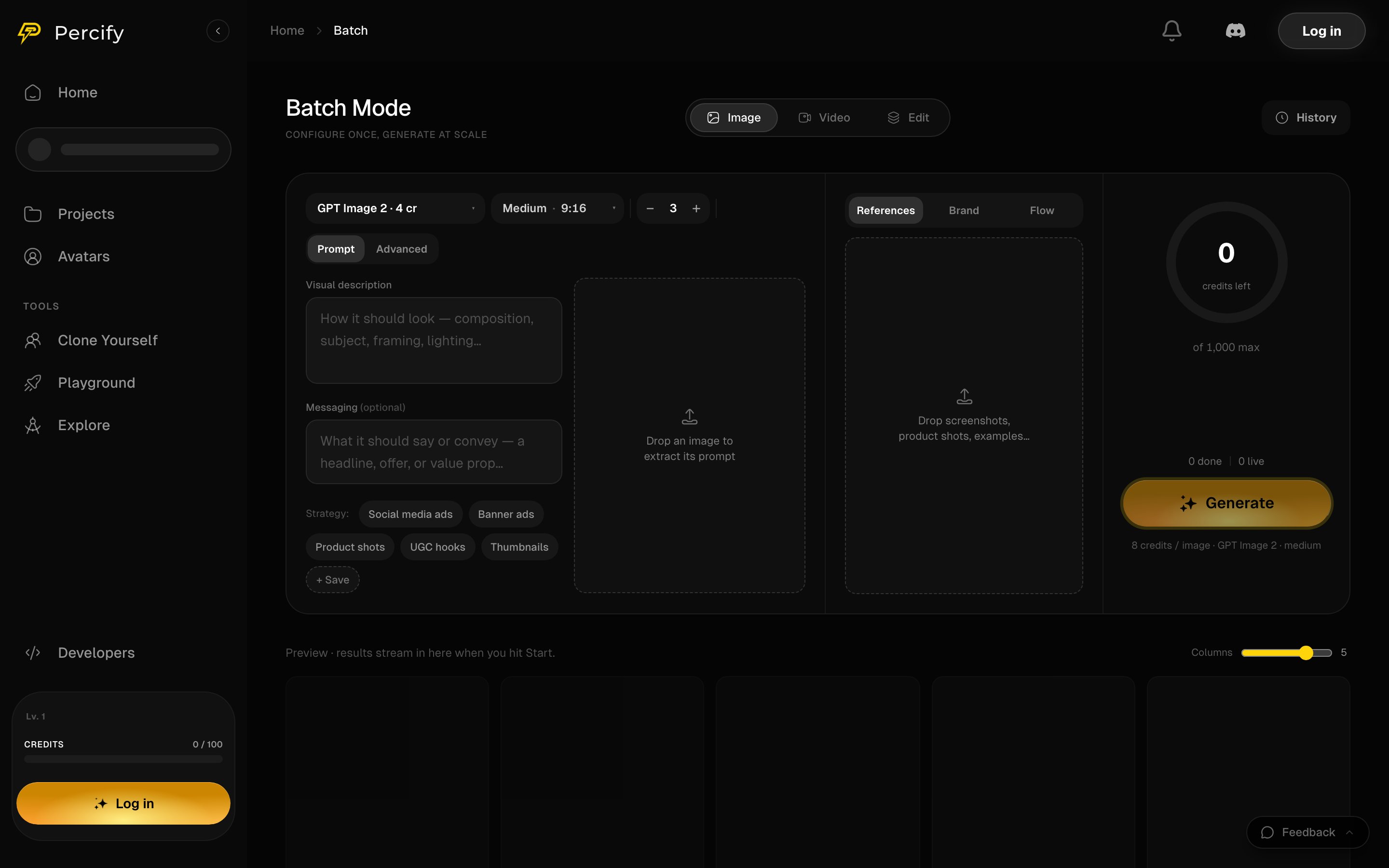
Batch Mode runs one model over many generations from a single configuration, so you set the model, the quality and the prompt once and get a grid of results instead of repeating yourself. Open it at [app.percify.io/home/batch](https://app.percify.io/home/batch?utm_source=docs\&utm_medium=referral\&utm_campaign=create-batch-mode). Each item is an ordinary generation, charged at that model's normal price and refunded if it fails.
 ## What can run in a batch
Batch Mode has three tabs, and each one runs the models of that kind:
| Tab | What it makes |
| ----- | -------------------------- |
| Image | Images from a text prompt |
| Video | Video clips |
| Edit | Edits of images you supply |
## How to run one
1. Pick the tab, then the model. The model chip shows its price, for example **GPT Image 2 · 4 cr**.
2. Set the quality and the aspect ratio, then the number of generations with the stepper.
3. Write the **Visual description**: how it should look, the subject, framing and lighting.
4. Add **Messaging** if the picture has to say something, such as a headline or an offer. This field is optional.
5. Press **Generate**. Results stream into the preview grid as they finish, and the counter reads **done** and **live** while it runs.
The line under the button shows the price of one item at your current settings, so the cost of the run is that number times the count.
## Strategy presets
Five presets fill in a starting prompt for a common job: **Social media ads**, **Banner ads**, **Product shots**, **UGC hooks** and **Thumbnails**. Press **+ Save** to keep your own prompt scaffold as a strategy and reuse it later.
## Start from an image instead of a prompt
Drop an image on **Drop an image to extract its prompt** and press **Extract prompt**. Percify writes a prompt describing that image, and **Use as prompt** puts it in the prompt box for you to edit. Extracting a prompt costs no credits.
The panel beside it takes reference material that every item in the run should follow: drop screenshots, product shots or examples under **References**, or switch to **Brand** to use a saved brand, or **Flow** to run a saved recipe.
## How many run at once
Concurrency sets how many generations run in parallel. It is locked while a run is going, so set it before you press Generate. Raising it finishes the set sooner and spends credits sooner; it does not change the price of any item.
## What happens if you close the tab
**The in-app run stops.** Batch Mode drives its loop from the browser, so closing the tab or navigating away ends the run. Generations already submitted finish and are still charged, and you will find them in **History** and in your library.
If you need a batch that survives you hanging up, use the API or MCP instead: those are driven by the server, resume if interrupted, and take a credit budget. See [Run a batch from the API](/api-reference/batches).
## FAQ
The in-app page takes the count you set with the stepper. The API and MCP accept 1 to 50 prompts in one batch.
Each item costs the model's normal price, which the line under Generate shows for your settings. A run of 10 images on a 4 credit model at medium quality costs what 10 single runs would cost. Nothing is charged for a run that fails.
Yes. Stopping prevents new items from being submitted. Anything already generating finishes and is still charged.
Into the preview grid as they finish, and into your library. **History** lists past runs.
## Related
Server-driven batches that survive a disconnect, with a credit budget.
Try a model on one prompt before running it fifty times.
Subject first, then style, light, camera, length and shape.
Credit prices per model, and what a plan includes.
## What can run in a batch
Batch Mode has three tabs, and each one runs the models of that kind:
| Tab | What it makes |
| ----- | -------------------------- |
| Image | Images from a text prompt |
| Video | Video clips |
| Edit | Edits of images you supply |
## How to run one
1. Pick the tab, then the model. The model chip shows its price, for example **GPT Image 2 · 4 cr**.
2. Set the quality and the aspect ratio, then the number of generations with the stepper.
3. Write the **Visual description**: how it should look, the subject, framing and lighting.
4. Add **Messaging** if the picture has to say something, such as a headline or an offer. This field is optional.
5. Press **Generate**. Results stream into the preview grid as they finish, and the counter reads **done** and **live** while it runs.
The line under the button shows the price of one item at your current settings, so the cost of the run is that number times the count.
## Strategy presets
Five presets fill in a starting prompt for a common job: **Social media ads**, **Banner ads**, **Product shots**, **UGC hooks** and **Thumbnails**. Press **+ Save** to keep your own prompt scaffold as a strategy and reuse it later.
## Start from an image instead of a prompt
Drop an image on **Drop an image to extract its prompt** and press **Extract prompt**. Percify writes a prompt describing that image, and **Use as prompt** puts it in the prompt box for you to edit. Extracting a prompt costs no credits.
The panel beside it takes reference material that every item in the run should follow: drop screenshots, product shots or examples under **References**, or switch to **Brand** to use a saved brand, or **Flow** to run a saved recipe.
## How many run at once
Concurrency sets how many generations run in parallel. It is locked while a run is going, so set it before you press Generate. Raising it finishes the set sooner and spends credits sooner; it does not change the price of any item.
## What happens if you close the tab
**The in-app run stops.** Batch Mode drives its loop from the browser, so closing the tab or navigating away ends the run. Generations already submitted finish and are still charged, and you will find them in **History** and in your library.
If you need a batch that survives you hanging up, use the API or MCP instead: those are driven by the server, resume if interrupted, and take a credit budget. See [Run a batch from the API](/api-reference/batches).
## FAQ
The in-app page takes the count you set with the stepper. The API and MCP accept 1 to 50 prompts in one batch.
Each item costs the model's normal price, which the line under Generate shows for your settings. A run of 10 images on a 4 credit model at medium quality costs what 10 single runs would cost. Nothing is charged for a run that fails.
Yes. Stopping prevents new items from being submitted. Anything already generating finishes and is still charged.
Into the preview grid as they finish, and into your library. **History** lists past runs.
## Related
Server-driven batches that survive a disconnect, with a credit budget.
Try a model on one prompt before running it fifty times.
Subject first, then style, light, camera, length and shape.
Credit prices per model, and what a plan includes.