> ## Documentation Index
> Fetch the complete documentation index at: https://docs.percify.io/llms.txt
> Use this file to discover all available pages before exploring further.
# Restyle a photo with AI effects and upscaling
> Effects applies a style to an image you upload: anime, cyberpunk, watercolour, sketch, 3D and more, plus 2x and 4x upscaling. Drop a file and pick a look.
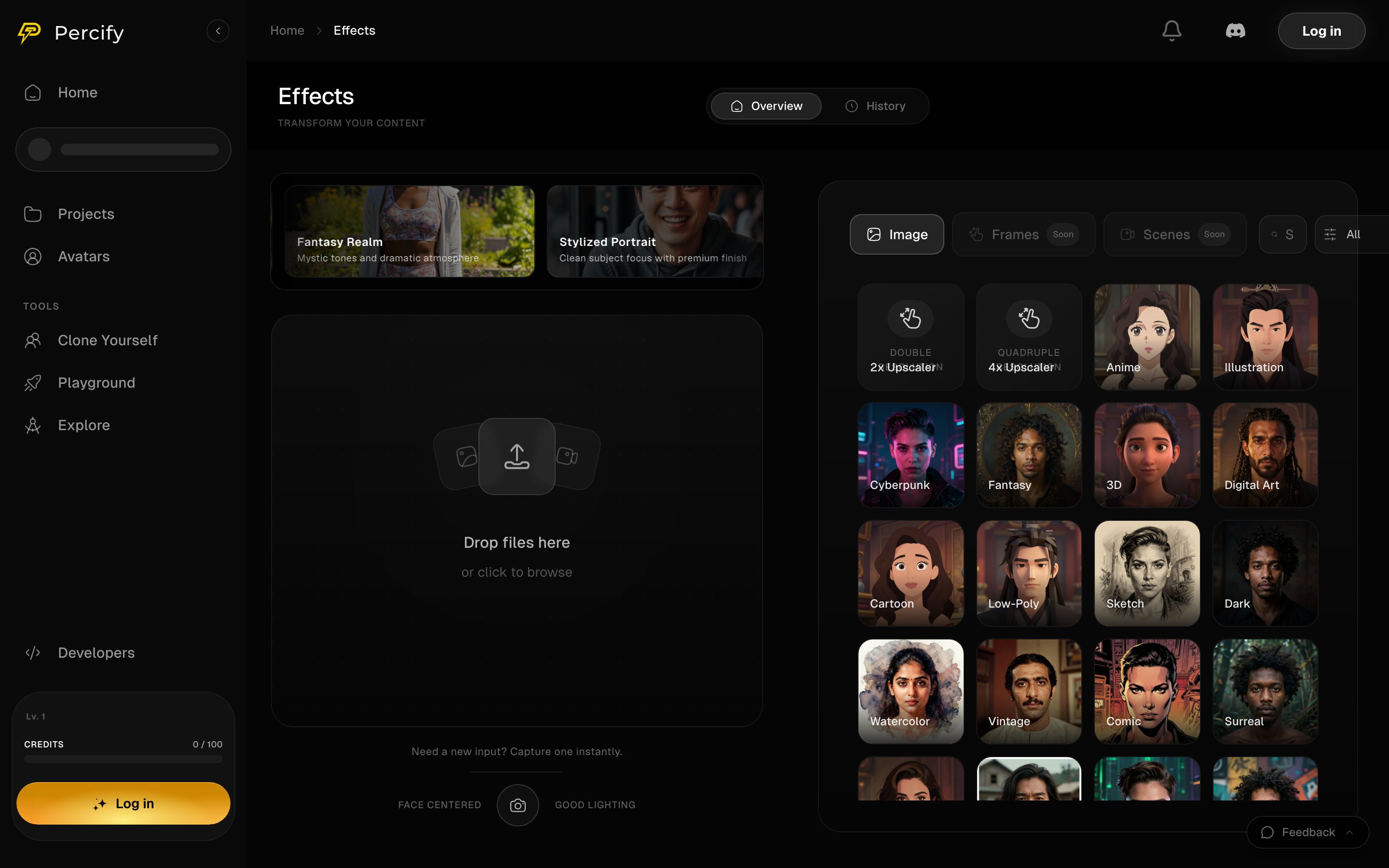
Effects takes an image you upload and returns it in a different style, or at a higher resolution. Drop a file, pick a look from the grid, and generate. Open it at [app.percify.io/home/effects](https://app.percify.io/home/effects?utm_source=docs\&utm_medium=referral\&utm_campaign=create-effects).
 ## What you can apply
| Kind | Examples |
| ------------ | ------------------------------------------- |
| Illustration | Anime, Illustration, Cartoon, Comic, Sketch |
| Painting | Watercolour, Digital Art, Surreal |
| Photographic | Vintage, Dark, Cyberpunk, Fantasy |
| Dimensional | 3D, Low-Poly |
| Resolution | 2x Upscaler, 4x Upscaler |
The grid also carries featured looks at the top, such as **Fantasy Realm** and **Stylized Portrait**, which are presets rather than separate tools.
## How to apply one
1. Drop a file on the upload area, or click to browse. There is also a camera capture if you need a fresh input.
2. Pick a style, or one of the two upscalers, from the grid on the right.
3. Generate. The price of the run is shown before it starts, as everywhere else in Percify.
**History** keeps what you have already made.
## Upscaling rather than restyling
**2x Upscaler** and **4x Upscaler** sit in the same grid but do a different job: they raise the resolution of the image rather than changing its look. Use them on a result you already like, including one made elsewhere in Percify.
## What is not available yet
The tabs above the grid are **Image**, **Frames** and **Scenes**. Only **Image** runs today; Frames and Scenes are marked **Soon** and are not selectable.
## FAQ
It depends on the model behind the style. The price is shown before the run, and a failed run is refunded. See [How Percify credits work](/percify/credits).
No. The upscalers here take an image. Video sits in the other studios.
Two tabs marked Soon. They are not available yet and cannot be selected.
Yes. Save it, then use it as the photo in [Avatar Studio](/percify/avatar-studio) or [lip-sync](/create/lip-sync).
## Related
The Playground for models not wrapped in a preset.
One configuration, many images at once.
Fuse two portraits into one person.
Credit prices across the app.
## What you can apply
| Kind | Examples |
| ------------ | ------------------------------------------- |
| Illustration | Anime, Illustration, Cartoon, Comic, Sketch |
| Painting | Watercolour, Digital Art, Surreal |
| Photographic | Vintage, Dark, Cyberpunk, Fantasy |
| Dimensional | 3D, Low-Poly |
| Resolution | 2x Upscaler, 4x Upscaler |
The grid also carries featured looks at the top, such as **Fantasy Realm** and **Stylized Portrait**, which are presets rather than separate tools.
## How to apply one
1. Drop a file on the upload area, or click to browse. There is also a camera capture if you need a fresh input.
2. Pick a style, or one of the two upscalers, from the grid on the right.
3. Generate. The price of the run is shown before it starts, as everywhere else in Percify.
**History** keeps what you have already made.
## Upscaling rather than restyling
**2x Upscaler** and **4x Upscaler** sit in the same grid but do a different job: they raise the resolution of the image rather than changing its look. Use them on a result you already like, including one made elsewhere in Percify.
## What is not available yet
The tabs above the grid are **Image**, **Frames** and **Scenes**. Only **Image** runs today; Frames and Scenes are marked **Soon** and are not selectable.
## FAQ
It depends on the model behind the style. The price is shown before the run, and a failed run is refunded. See [How Percify credits work](/percify/credits).
No. The upscalers here take an image. Video sits in the other studios.
Two tabs marked Soon. They are not available yet and cannot be selected.
Yes. Save it, then use it as the photo in [Avatar Studio](/percify/avatar-studio) or [lip-sync](/create/lip-sync).
## Related
The Playground for models not wrapped in a preset.
One configuration, many images at once.
Fuse two portraits into one person.
Credit prices across the app.