

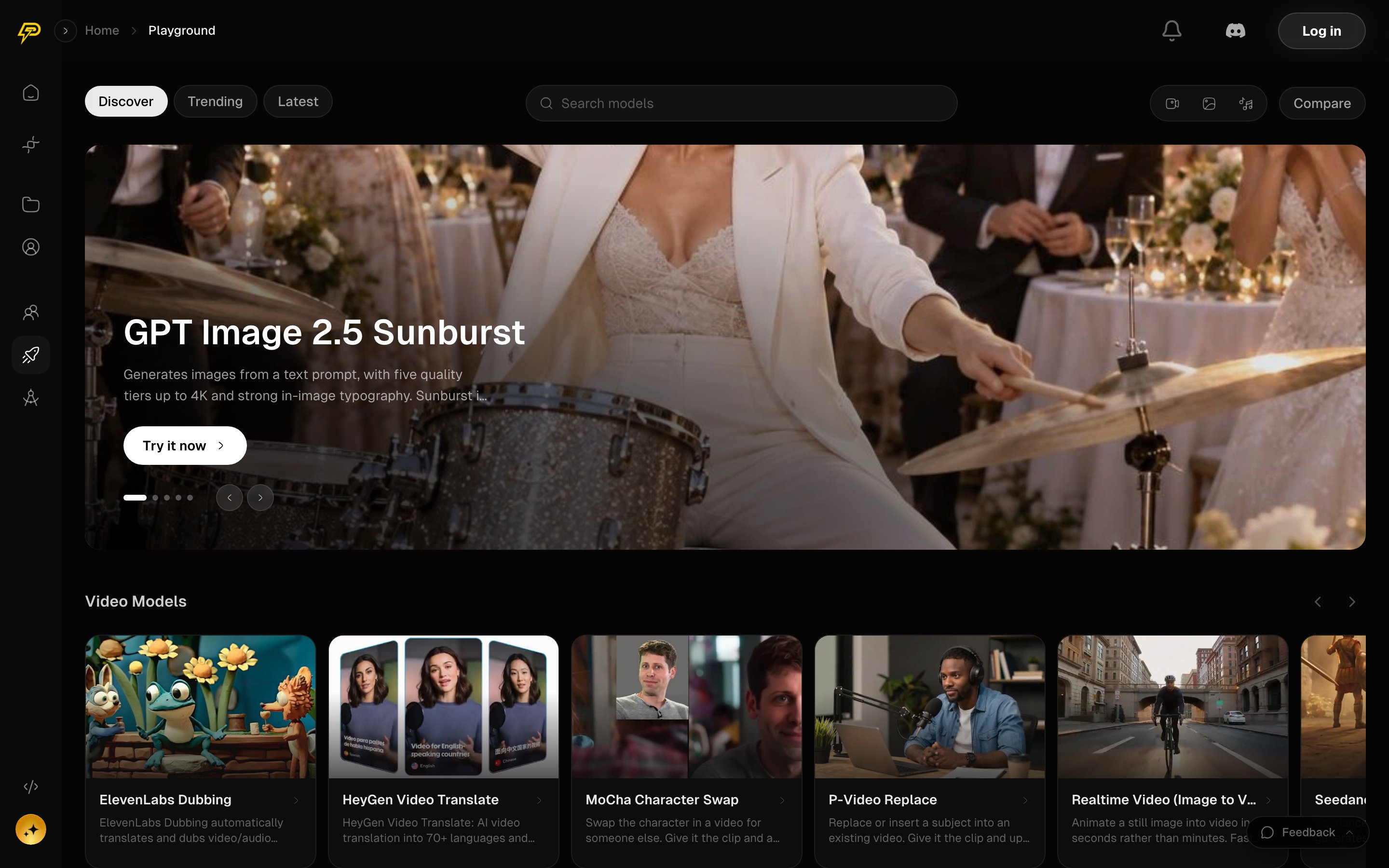
The Playground Discover tab: search every model, switch to Trending or Latest, or open Compare to run two models on one prompt.
How do I run a single model?
1
Find a model
Open Playground in the sidebar. Sort the catalog with Discover, Trending or Latest, type in Search models, or use the video, image and audio icons to filter by what the model makes. See AI models in Percify for the full list.
2
Fill in the inputs
On the model’s page, the Playground tab shows an Input form built from that model’s own settings, such as the prompt, a reference image, length or resolution. You can also edit the same values as JSON. Reset puts every field back to its default.
3
Check the price and run
The header shows the price for your current settings, and the button reads Run with that number. If a required field is empty, Percify tells you which one before anything is charged.
4
Save the result
The result appears under Output. Use Download to save the file or Copy link to copy its URL.
How do I compare two models side by side?
1
Open Compare
In the Playground, press Compare at the right of the header.
2
Choose what to test
Under What do you want to test?, pick Video models or Image models. Under Comparison type, pick Two models to test two models on one prompt, or Director mode (explained below).
3
Pick the models
Choose Model A and Model B. If either model needs a starting image, upload one under Reference image.
4
Write the prompt and set the shape
Type your Prompt, then set Ratio (9:16 or 16:9), Quality (Cheapest, Balanced or Best) and, for video, Duration. Compare only offers durations that both models can make exactly, so the two clips match in length.
5
Run both
The total reads “credits for both”. Press Compare. Each side shows its own progress, time taken and credit cost.
What is Director mode?
Director mode keeps the model the same on both sides and compares two ways of writing the prompt. You pick one model, then a Director A and a Director B. Each director is an AI language model that rewrites your idea before it goes to the video or image model, in one of two styles:
The directions each side used are shown under the results, so you can see what produced each clip.
What can I do with a finished comparison?
- History keeps every comparison you run, so you can open a past one later or remove it.
- The share button creates a public link to the comparison. Press it again to revoke the link, which stops the old link working.
- When both sides are done, Create 9:16 cut or Create 16:9 cut renders a branded side-by-side video at 1080×1920 or 1920×1080. You can edit the label over each clip and choose whose sound it keeps: Left clip, Right clip or Both. Then use Download to save it.
How much does the Playground cost?
The Playground spends the same credits as the rest of Percify, on every self-serve plan. The price depends on the model and on the settings that move its price.
Credits come back automatically when:
- a run fails, or a stuck run is stopped
- one side of a comparison fails (you pay only for the side that ran)
- a director fails to write its direction
Related
AI models in Percify
Every image, video and audio model in the catalog, with credit prices
How to write prompts
Prompt advice that fits how Percify’s models take input
How Percify credits work
Plans, monthly credits and what a run costs
Percify API
Run the same models from your own code